Pages

Ads 468x60px

Tuesday, 24 December 2013

learn how make Your iPhone Look Like iOS 7

learn how make Your iPhone Look Like iOS 7

iOS 7 comes with a pretty sleek new look, but you need to be a developer to actually check it out before this fall. Thankfully, you can get the look and feel of iOS 7 really easily with a few jailbreak tweaks and themes. Here's what you'll need.


We talked before about getting the best features of iOS 7, but that didn't really cover a lot of the new look. iOS 7 sports a dramatically different look than previous versions. 

Everything from the homescreen to the Notification Center is completely different looking. We're not going to be able to create an exact replica on iOS 6, but we can get it pretty close. Other than a jailbroken phone, here's what you'll need to do it.
Reade more >>

Tuesday, 17 December 2013

Learn How to Develop Android Games: Lesson Two

Let’s start of by creating the first flash file, we will not start using adobe flash cs5 but we will start by using adobe device center cs5, with device center cs5 it allow to me to test the swf content on to various devices.

To browse the devices available on Adobe Device Center, click on to “Browse Devices”

As you can see, the program load all devices


I will choose the hieghlighted devices, and then drag them on the “Test Devices” tab .. see the images


If you select one of these devices, more details will appear on the right side .

To create file for specific device, select the device and then click on the “Create” button on the top right side

The adobe flash will open and a new file will created, I will draw a rectangle as the image explain:

Then I will test this file on the Device Central, to test the file on the selected device 

the Device center opened and the file is tested on the device as you see … , but there is a gray bar on the top !

To hide this bar click on the “set to Fullscreen”.


Finally you create your first file, and test it, wait us in the next Lesson, we will explain the game that we will create it 


Reade more >>

Friday, 13 December 2013

Learn How to Develop Android Games : Lesson One

In first topic we will show an overview of android that will help the beginner developers to know what is android and which enviroment that we will develop the game on it.


Overview Of ANDROID
Android is a type of software for mobile devices that includes and operationg system, middleware and key applications.
And android also has android SDK that provides the necessary tools to develop applications
The android operating system can be used as an operating system for cellphones, netbooks and tablets. and for an up-to-date list of devices running the android OS, go to:
http://en.wikipedia.org/wiki/Android_devices.


We will develop android games by using Adobe Flash, and Adobe AIR.. read the next pargraph to know more about ADBOE AIR


AIR FOR ANDROID
You're able to package swf files into Adobe AIR apps for Android devices, they become .
apk files !
and also it can do the same for:
- BlackBerry tablet OS
- Apple iOS mobile operating system
so you can do application in Flash profesional to varios devices.

Also there is more specific features, like:
  1. - Multitouch
  2. - Accelerometer
  3. - Screen Orientation
  4. - Microphone
  5. - Keyboard
  6. - Geolocation (is defining where you are )
  7. - Camera Roll
  8. - GPU

When you develop your game, you can go head and put that game only in android market place.
The android Marketplace allowa Androidd developers to freely distribute apps to Adroid mobile phones:
  1. - Free apps
  2. - Paid apps (to make some money, it's powerfull to get users to your app)

this is the fist topic .. it's just the begining if you love to become android game developer .. wait us in the next topic

The Next Topic is :

Reade more >>

Monday, 9 December 2013

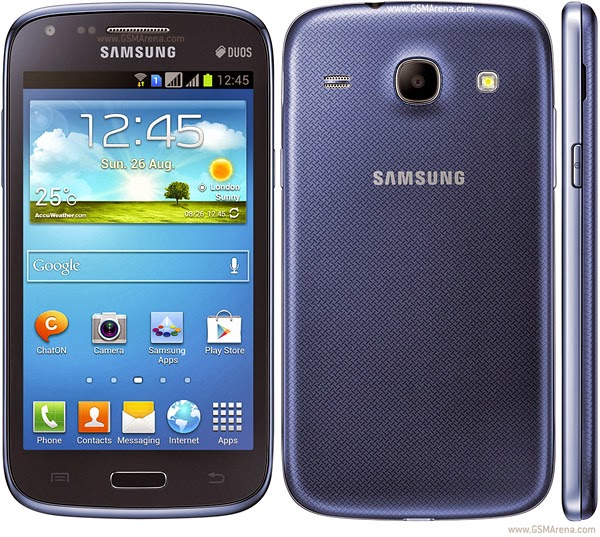
10 Photos For New Mobiles "Galaxy" Work On Android Os

10 Photos For New Mobiles "Galaxy" Work On Android Os


To See More Photo Of Android Mobile Download here 

Reade more >>

Saturday, 7 December 2013

making money with your cell phone?!

making money with your cell phone?!

making money with cell phones for nearly 3 years and will teach you everything I know.


Just 30 Minutes A Day = More Money Than You're Thinking .

  • There are over 5 billion cell phone users worldwide since 2010 and this number is growing.
  • The iPhone 4 sells in stores for $199 and $500+ on eBay - can you answer why?
  • Businesses are popping up everywhere advertising to buy your old, seemingly obsolete cell phones.
  • There's a huge unsaturated market that you're unaware of - and it's right under your nose!
Remember, this does not have to do with mobile  marketing or cell phone contracts. This entrepreneurial business model I've created has brought me success for nearly three years. There are NO start-up costs and no previous knowledge is necessary.
What's There To Learn To Begin Making Money,  You Ask?
  • Where to buy and sell cell phones, how to maximize profits, the value of new, used, and broken cell phones
  • How to assess condition and functionality, benefit from networking, and make cost-effective trades
  • How much to pay for cell phones in brand new, used, completely shattered and unusable conditions
  • Inevitable mistakes explained and how to overcome them before they even happen
You're So Close To Making Money With Cell Phones. Can You Smell It?

http://adf.ly/aQrjV


Reade more >>

Sunday, 1 December 2013

Android Programming and development

Android Programming and development

Installing the Software

•Java 6

•Eclipse

•Android SDK base

•Eclipse ADT Plugin

•Updated SDK components

•AVD (Android Virtual Device).
Java SE 6
  •Use Java 6 (aka JDK 1.6)
–Java 5 supported only by older Android versions

–Java 7 can technically be used, but new Java 7 features not supported

•For Windows \ Linux, follow directions at http://adf.ly/aA0I0

–Get JDK, not just JRE

–Get SE (Standard Edition), not EE nor ME editions

–Don’t get version with the Net Beans IDE 

   Eclipse

–Eclipse is a free open source IDE (Integrated Development Environment). Support for Java, HTML, CSS, JavaScript, C++, PHP, and more. 
–Google has free Eclipse plugin to integrate with the Android SDK.
 •Features 
    –General 
              •Checks your syntax as you type 
              •Automatically compiles every time you save file 
               •Refactoring, debugging, templates for common tasks, etc. 
   –Android-specific 
             •Deploy apps to Android emulator 
             •Configure virtual environments 
             •Drag-and-drop GUI builder  
             •  Go to http://adf.ly/aA0dY

       
  •  use “for Java”

 – Latest version (3.7 –INDIGO ) recommended.

 – No installer, just Unzip the downloaded file

The Android SDK

• Overview

–Android-specific libraries

–Dalvik (Android Virtual Machine) compiler

–Android emulator (to run without physical device)

–DDMS (Dalvik Debug Monitor Server ) debugging environment

The Android SDK Documentation

• Installation


• Developer’s Guide


• JavaDoc(API Reference)


• Tutorials and articles

• Download and run  installer

– From http://developer.android.com/sdk/

•E.g. install in C:\android-sdk

– Sets up basic SDK, but omits many components

•Detailed instructions


•Postponed step

–After installing Eclipse plugin, we will run the Android  SDK Manager to get important missing components

•Easiest to do from Eclipse. See upcoming slide after Eclipse ADT installation.

Eclipse ADT Plugin

•Overview
–ADT (Android Development Tools) provides many useful features accessible directly in Eclipse
•Integration between Eclipse & Android command-line tools
•Drag-and-drop GUI builder
•Many development and debugging aids
•Detailed installation instructions


•More details

Installing Eclipse ADT

•Steps

–Start Eclipse

–Help – Install New Software …


–Click “Add” in upper-right

–In Add Repository, for Name

   enter “ADT Plugin” and for 

• Steps …

–Click OK, select checkbox next to Developer Tools, 
Next, see packages to be installed

–Accept license, Finish.

•Restart Eclipse if asked.


–Run Android SDK Manager

•Should be prompted; if not, Windows - Android SDK Manager

   Updating SDK Components

   •Run Android SDK manager

–Window - Android SDK Manager

    •Probably prompted automatically after installing ADT plugin and restarting Eclipse

–Select all entries, except that you can omit Android versions older than 2.2

•Click “Install n packages”

•Runs for a longtime   

•Detailed instructions

 
Android Virtual Devices (AVDs)

•An AVD (Android Virtual Device) is an Android Emulator  configuration that lets you model an actual device by defining hardware and software options.

•Idea
 –Define several AVDs at different Android API levels to test against.

–At least two:

•Newest version (e.g., 4.1 –Jelly Bean)

•Most common version (2.3.3 as of 2012)

•To see statistics for versions of currently used Android devices, see


•Detailed instructions

 Defining an AVD
   •Defining

–Window -> AVD Manager

–Click on “New” at top. Choose name (arbitrary) and options. You can (should!) create multiple AVDs.

   •Options

–Target (i.e., target API version)

•4.1 to test tablet and new features

•2.3.3 to test most common phones

–SD Card size

•Can be omitted. Or, choose middle

of the road value, e.g., 4 GB

–Skin

•Use default for the target you chose

Configuring Eclipse ADT

•Set SDK Location

–Window –> Preferences -> Android -> Click Browse and point at place you installed the SDK

–Optional: disable sending stats to Google

•Window -> Preferences -> Android -> Usage Stats


Running Apps

•Ways to run

–On the Android Emulator. Deploy directly from Eclipse.

•During development, do your normal testing here

–On an Android device. Deploy from your PC via USB.

•Other options covered online

–On an Android device. Deploy from a Web site.

–On an Android device. Deploy via email.

–On and Android device. Deploy from the Android Market
Running Apps on Android Emulator  

Reade more >>

.

Education blog